Beginner’s Tutorial: Create Your First Professional Sequence Diagram in Minutes Using Visual Paradigm AI Chatbot
(A Complete Step-by-Step Guide with Real ATM Example)

Who This Tutorial Is For
- Students learning UML or software engineering
- Beginners who have never drawn a sequence diagram
- Business analysts, teachers, or anyone who needs clear diagrams fast
- People who feel overwhelmed by traditional tools like Visio, Lucidchart, or Draw.io
What You Will Learn & Create
By the end of this 15-minute tutorial, you will have:
- A perfect UML sequence diagram for “Withdraw Cash from ATM”
- A ready-to-use explanatory article about your diagram
- Confidence to create any other diagram using only English sentences
No installation, no drawing skills, and no paid subscription needed (everything works in free trial mode).
Step 0: Go to the Tool
Open your browser and go to: https://chat.visual-paradigm.com (or search “Visual Paradigm AI Chatbot”)
You will see a clean chat interface that looks similar to ChatGPT, but it is specially made for diagrams.
Step 1: Start a New Chat
Click the blue button “+ New Chat” on the left side. Give your chat a name (optional): type ATM Withdraw Sequence and press Enter.
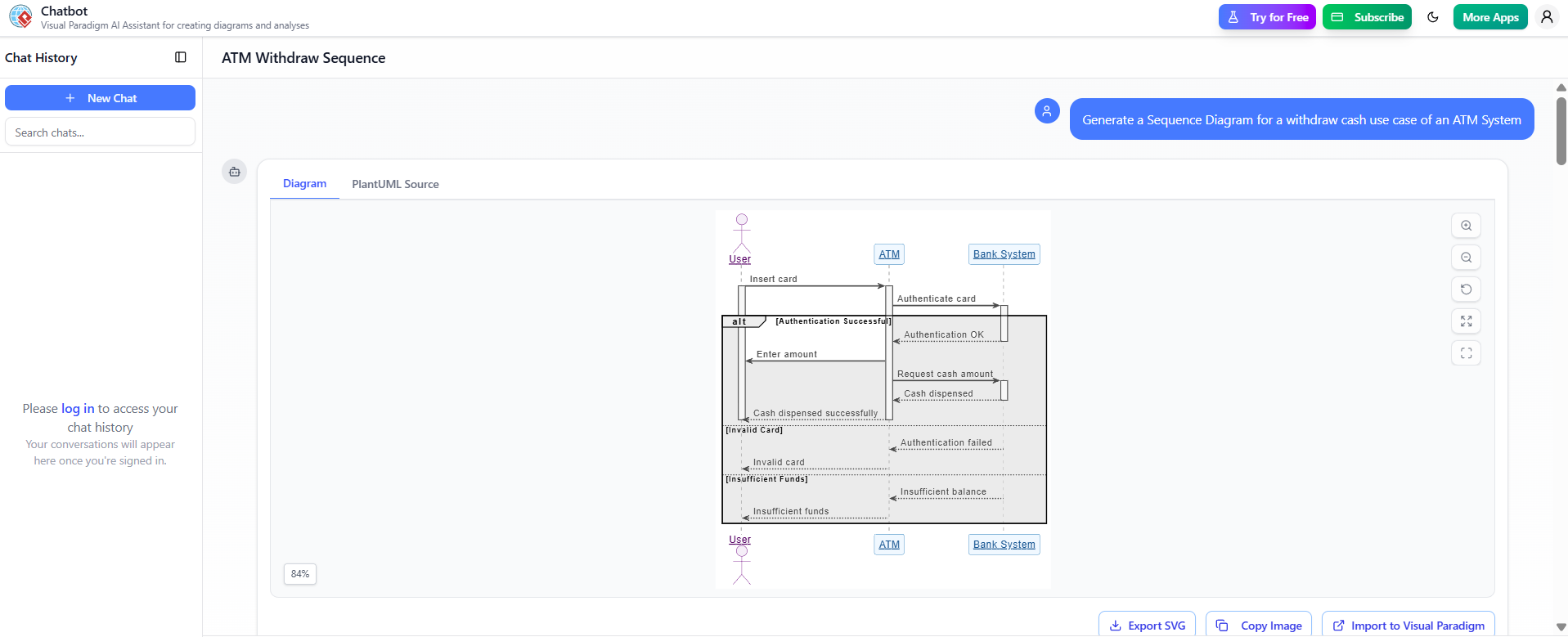
Step 2: Generate the Sequence Diagram (Takes 5–10 seconds)
In the chat box, type exactly this sentence (you can copy-paste):
Generate a Sequence Diagram for a withdraw cash use case of an ATM SystemPress Enter.
What happens next (watch the magic):
- The AI instantly understands your request
- It creates three actors: User, ATM, and Bank System
- It draws the complete flow: insert card → enter PIN → enter amount → dispense cash
- It automatically adds error cases: invalid card and insufficient funds
- A beautiful, professional diagram appears on the screen
You now have a 100% correct UML sequence diagram without touching the mouse for drawing!
Step 3: Understand What You Just Created
Look at the diagram (refer to the first screenshot in the original post):
Key parts explained in beginner language:
| Element | Meaning |
|---|---|
| Three vertical lines | Lifelines → User, ATM, Bank System |
| Horizontal arrows | Messages (what one sends to another) |
| Box labeled “alt” | Alternative paths (like “if…else” in programming) |
| Top part of “alt” | Success scenario (correct PIN + enough money) |
| Middle part | Invalid card → card is ejected |
| Bottom part | Insufficient funds → transaction cancelled |
| Dashed arrow back | Return message (e.g., “Authentication OK” or “Insufficient balance”) |
You do NOT need to know PlantUML code — the AI handles everything.
Step 4: Make Changes Easily (No Drawing Required)
Want to practice editing? Try any of these commands one by one (just type and press Enter):
Add a PIN entry step after inserting the cardShow a message when the user takes the cashRename "User" to "Customer"Add a fourth actor called "Card Reader"Make the diagram horizontal instead of verticalStep 5: Generate a Beginner-Friendly Explanation Article
Now type this second prompt:
Write an article to explain this sequence diagram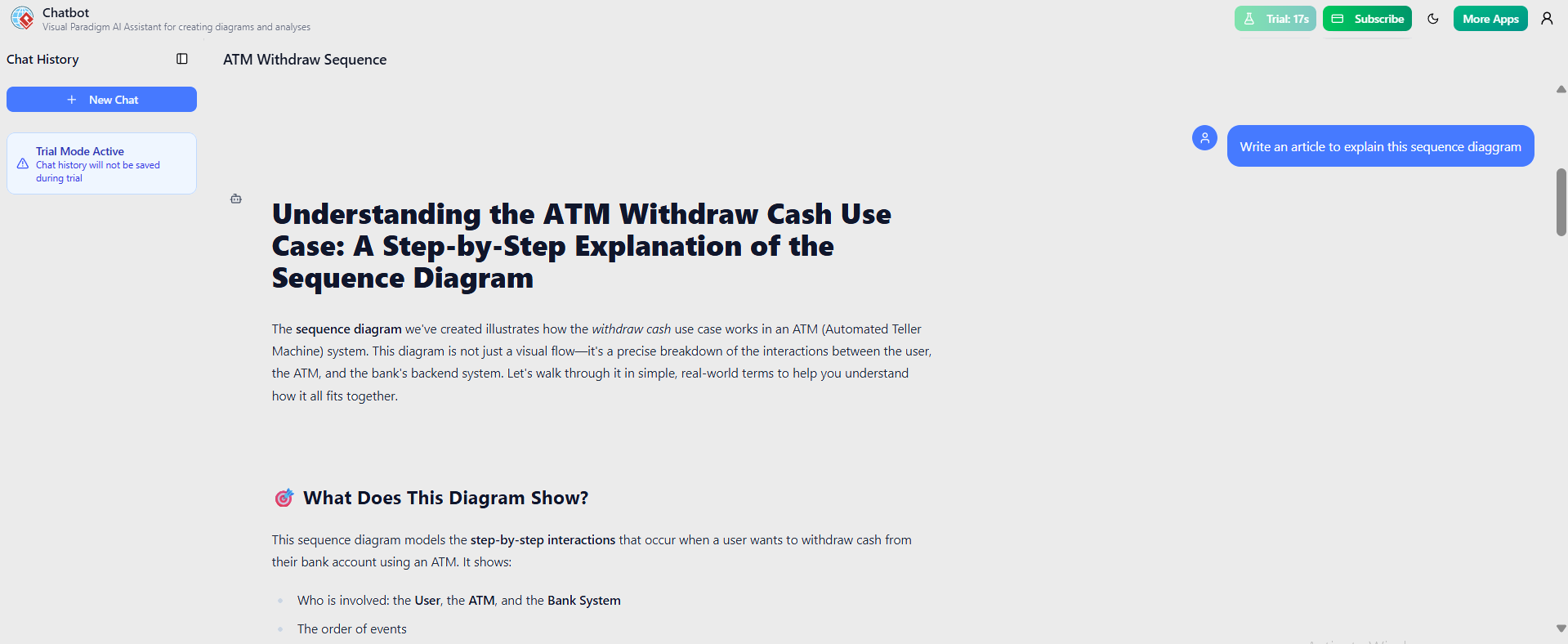
In seconds the AI writes a full, well-structured article (see the second screenshot). You can copy this article directly into:
- Your school/university assignment
- A PowerPoint presentation
- A blog post or company documentation
Step 6: Ask Questions About Your Diagram (Interactive Learning)
The diagram is now “smart”. Try asking plain-English questions:
What happens if the PIN is wrong three times?List all the messages sent to the Bank SystemExplain this diagram as if I am 12 years oldGive me 3 possible extensions for this use caseStep 7: Download or Export (Optional)
Even in free trial mode you can:
- Right-click the diagram → Save image as PNG/JPG
- Click “PlantUML Source” tab → copy the code (useful for GitHub or other tools)
- When you eventually buy or get a license, you can export to Visual Paradigm desktop with one click for team collaboration.
Bonus Challenges for Beginners (Try These Next!)
- “Create a sequence diagram for user login to a website”
- “Make a use case diagram for a library system”
- “Draw a flowchart for making tea”
- “Generate an ER diagram for a school database”
Every single one works with a single sentence!
Summary Checklist – You Have Now Mastered
- Starting a new diagram project
- Generating a sequence diagram from English
- Reading and understanding lifelines, messages, and alt fragments
- Editing diagrams with natural language
- Creating automatic documentation
- Asking intelligent questions to your diagram
You are no longer afraid of UML or diagramming tools!
Next Steps
- Bookmark https://chat.visual-paradigm.com
- Practice 2–3 diagrams per day for one week
- Show your diagrams to teachers, teammates, or on LinkedIn — they will be impressed
You now have a superpower: turning any idea into a professional diagram + explanation in under 2 minutes.
Happy diagramming!