Comprehensive Guide to Using the Use Case Scenario Analyzer in Visual Paradigm
09 Dec
The Use Case Scenario Analyzer is an AI-powered application in Visual Paradigm that automatically transforms a textual use case description into fully structured decision tables. It identifies all relevant conditions, actions, and possible scenarios (including edge cases), giving you a complete, systematic overview of the use case behavior. This is extremely valuable for business analysts, system architects, testers, and developers who need to understand, discuss, validate, or test use case logic thoroughly.
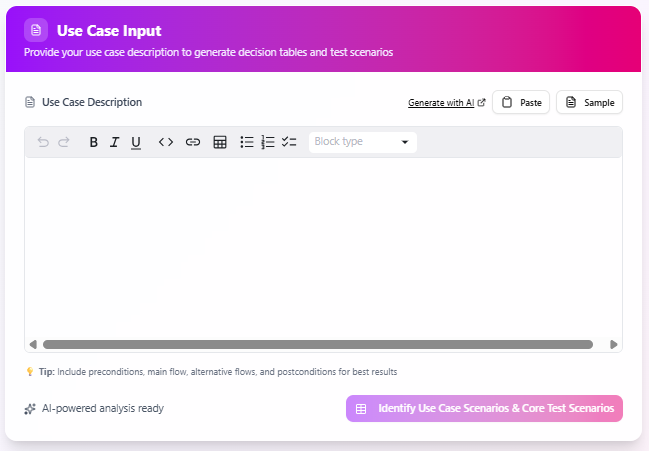
Released as part of Visual Paradigm’s Apps ecosystem, the tool dramatically reduces the manual effort required to enumerate scenarios and build decision tables.
Why Use the Use Case Scenario Analyzer?
- Instantly generates all logical scenarios from a natural-language description
- Extracts conditions (preconditions, guards, business rules) and actions automatically
- Produces a clear decision matrix showing which conditions trigger which actions
- Serves as a solid foundation for requirements validation, stakeholder discussions, and test case creation
- Supports iterative refinement – edit the description and regenerate instantly
Step-by-Step User Guide
Step 1: Access the Use Case Scenario Analyzer
- Open Visual Paradigm (desktop or online version).
- From the main menu, click Tools.
- Select Apps from the dropdown.
- Locate Use Case Scenario Analyzer in the list.
- Click Start Now → the tool opens in a new window/tab.
Step 2: Provide the Use Case Description
This is the only manual input required.
Best Practices for Input
- Write a complete use case description that includes:
- Actor and goal
- Preconditions
- Main (happy path) flow
- Alternative flows (exceptions, error cases)
- Postconditions (success and failure)
- Use Markdown formatting – it greatly improves AI accuracy and readability:
Markdown
## Preconditions - User is logged in - Shopping cart is not empty ## Main Flow 1. User proceeds to checkout 2. System calculates total ... ## Alternative Flow A: Insufficient stock At step 4, if selected product is out of stock... - You have three ways to enter the description:
- Type directly into the large text area.
- Paste a previously written description.
- Reuse output from Visual Paradigm’s Use Case Description Generator app (highly recommended for consistency).
Preview & Submit
- A real-time preview pane shows how your markdown renders.
- When satisfied, click the blue button: Identify Use Case Scenarios & Core Test Cases
The AI will process the text (usually within seconds).
Step 3: Review the Generated Decision Table Analysis
The tool returns three interconnected tables:
i. Conditions Table
Lists every precondition or guard condition the AI identified (explicit or logically inferred).
| Condition ID | Condition Description | Source (if explicit) |
|---|---|---|
| C1 | Card is inserted | Preconditions |
| C2 | PIN is correct | Main flow |
| C3 | Withdrawal amount ≤ account balance | Business rule |
| C4 | ATM has sufficient cash | Implicit |
| C5 | Amount entered > 0 | Validation |
| C6 | Account is active | Preconditions |
ii. Actions Table
Lists every action or system response that can occur.
| Action ID | Action Description |
|---|---|
| A1 | Authenticate customer |
| A2 | Dispense cash |
| A3 | Display “Insufficient funds” |
| A4 | Eject card |
| A5 | Print receipt |
| … | … |
iii. Decision Matrix (the core output)
A full truth-table-style matrix showing every possible scenario.
| Scenario | C1 Card Inserted | C2 PIN Correct | C3 Amount ≤ Balance | C4 ATM Has Cash | C5 Amount > 0 | C6 Account Active | Actions Performed |
|---|---|---|---|---|---|---|---|
| S1 | ✓ | ✓ | ✓ | ✓ | ✓ | ✓ | A1 → Check balance → Dispense cash → Print receipt |
| S2 | ✓ | ✓ | ✗ | – | ✓ | ✓ | Display “Insufficient funds” → Eject card |
| S3 | ✓ | ✓ | ✓ | ✗ | ✓ | ✓ | Display “ATM low on cash” → Eject card |
| S4 | ✓ | ✗ | – | – | – | – | Display “Wrong PIN” → Allow retries |
| S5 | ✗ | – | – | – | – | – | Display “Please insert card” |
| S6 | ✓ | ✓ | – | – | ✗ | ✓ | Display “Enter valid amount” |
| S7 | ✓ | ✓ | – | – | – | ✗ | Display “Account inactive” → Eject card |
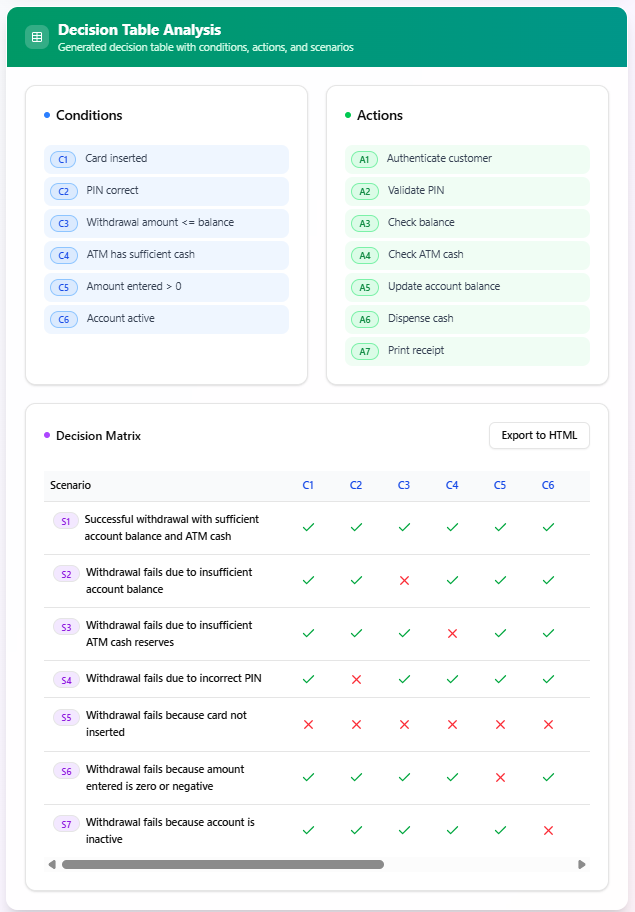
“–” means the condition is irrelevant for that scenario (don’t-care).
Each row is a complete, traceable scenario you can immediately turn into a test case.
Step 4: Utilize the Decision Tables
Now that you have the full matrix, you can:
- Validate Requirements
- Do any unexpected scenarios appear?
- Are critical error cases missing?
- Facilitate Workshops
- Share the matrix with stakeholders – it’s far easier to discuss than prose.
- Create Test Cases
- Each row = one test case (positive or negative).
- Export the table (copy-paste or screenshot) into your test management tool.
- Refine Iteratively
- Found a missing alternative flow? → Edit the original use case description → click Identify Use Case Scenarios & Core Test Cases again → New matrix is generated instantly.
Key Notes & Tips for Best Results
| Tip | Explanation |
|---|---|
| Use Markdown structure | Sections like ## Preconditions, ## Main Flow, ## Alternative Flows help the AI parse accurately |
| Be explicit about exceptions | Mention error messages, retries, timeouts, etc., in alternative flows |
| Include business rules | Even if obvious (e.g., “amount must be multiple of 10”), state them explicitly |
| Iterate multiple times | First run → spot gaps → enrich description → regenerate |
| Combine with Use Case Description Generator | Use the generator first for well-structured input, then feed it here |
| Don’t worry about “don’t-care” (–) cells | They are correct and reduce noise |
Conclusion
The Use Case Scenario Analyzer is one of the most powerful AI-assisted tools in modern requirements engineering. In just a few clicks, it turns ambiguous textual use cases into rigorous, exhaustive decision tables that reveal every possible execution path.
Whether you are eliciting requirements, reviewing specifications with stakeholders, or building a solid test suite, this tool saves hours (or days) of manual scenario enumeration and ensures nothing is overlooked.
Recommended workflow:
- Write or generate a structured use case description (markdown).
- Run it through the Use Case Scenario Analyzer.
- Review & refine iteratively.
- Export scenarios as the backbone of your test cases and acceptance criteria.
Master this tool, and you’ll achieve significantly higher requirements completeness and quality with minimal effort.